
General
– All the Frequency Response that can Get Heard by Human Ear
– i.e. Same Audible Power in Each of the Frequency Ranges Throughout the Octaves
– Has Lower Frequency than any other Type of Noise
Match Source to Reference via Pink Noise
– basically you Generate Pink Noise and Insert a EQ, Guitar Amp or any Plugin that may Sculpt Frequency Content, then you Match a desired Reference Curve “On the Fly” Visually by the Analyser
– in other Words you Look what Frequencies the Reference Curve has and then you Search an Amp or Color a EQ so it Matches “Exactly” that desire Spectrum Content
– although both can be Done, the Idea is rather to Look for a Specific Guitar Amp Setting that to “Match EQ” as this can be Done easier
– the other Benefit is to Compensate Frequency Content (Shown in a Referenced Full Version) Due to a Version without a Specific Instrument or Vocal Spectrum, so the Listener Does Not Miss something in a Important “Popular” Frequency Content
– another Advantage is to Find Faster what you Need without Tweaking Things for too Long
– Plus you School your Understanding through a Reproductive Workflow as you Manually Detect How Slopes / Q Factor affect the Bands while Listening to overall Matching Process
Basic Workflow
– this Example shows the Manual Way of Tweaking an EQ to Match Source
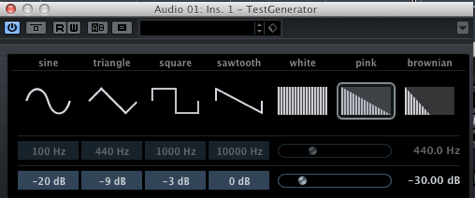
1) Insert a Test Generator and Switch to “Pink Noise”
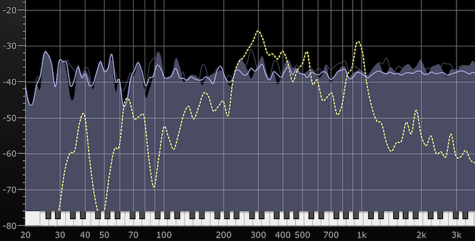
2) Load along the “Reference” within the Analyser
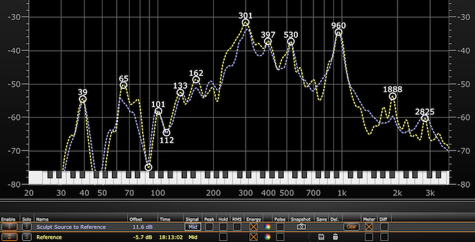
– Reference here in Yellow and the Generated Pink Noise in Viola
3) Insert Plugin after the Test Generator and Start to Sculpt with an EQ, Guitar Amp or anything
– with an Guitar Amp, at this Stage you Want Want to First choose Amp that Reflect the Overall Shape very well before Tweaking further Parameters
– here we Use an EQ to Train EQ Boosts / Cuts together with needed Slopes / Q Factor
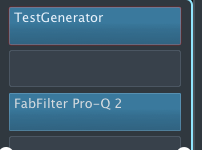
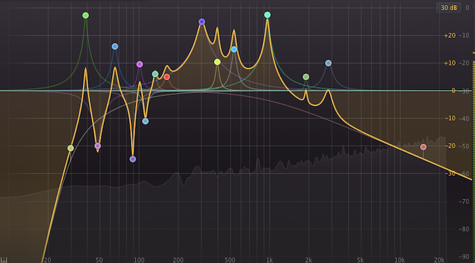
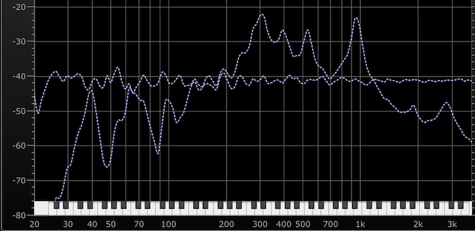
Original Pink Noise (Flat) and EQ Pink Noise (Curved)
Original Reference (in Yellow) and Matched “Pink Noise” Source to Reference with an EQ (in Viola)
Leave a Reply