- General
- Typical Import Options
- Importing Audio to Create Wavetable Examples
- Preparing Samples
- FFT Specific (Serum)
- Synth Sound Basic to Wavetable Example (Serum)
- Synth Sound + Morph Basic Example (Serum)
- Synth Sound + Morph Advanced Example (Serum)
- No Proper Pitch Info available Example (Serum)
- Advanced Example (Best Replica Results for Serum)
General
– Became Popular with the PPG Wave Synth and it is Based on Another Sound Source than Other Synths
– It is Based on a Wavetable that Acts as a “Look Up Table” to Produce the Sound
– „Wavetable” is a Name, given to a Small Amount of Digital Audio which is Played Back in a Looping Fashion
– so “Wavetable Synthesis” is Nothing Else than Morphing through All Kinds of Waves in 1 Single OSC
– the Frequency or Pitch of the Resulting Note is Created by the Rate at which this Waveform is Played Back
– the Note Stays the Same (e.g. E1 which is 83Hz or 83 Cycles per Second), but the Harmonic Content Changes from Frame to Frame
– a Tone or Harmonics of the Sound are Based on the Content of this Waveform, i.e. the Table of Wave it is
– Often there is a “Start Shift” to Offset the Phase and therefore Change the Start Point to get another Sound
– with “Symmetry” you change the Wavelength (similar to PWM)
– other than that, Similar Tools Such as as ADSR Envelopes or Layering etc. are available to Tweak Sounds further
– e.g. Serum Wavetables Consists of Up to 256 Sub-Tables also Called Single Cycled Waves or Frames, which means there are Up to 256 Frames available
– the Idea is to Turn a Small Number of Frames (Cycles) into a Set of 256 Frames (Cycles) which are Joined Together Inside 1 OSC (File)
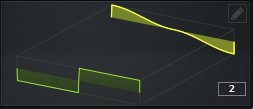
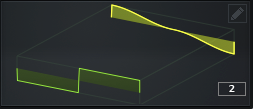
– Understand that if you have Created 2 Distinct Waveforms 1 + 2, this is Not a Complete Wavetable of 256 Frames, thus it Just Jumps Discretely from Waveform 1 to Waveform 2
Discrete
Continuous
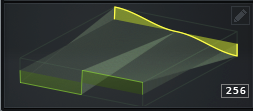
- that is that is when the “Morph” Option Come into Place, which Allow you to Morph in a Continuous Way between the 2 Distinct Waveforms by Crossfading the Neighbour Tables Together
Typical Import Options
Audio (via FFT Resynth 256)
– Split Up the Import Sample with No Pitch Map Information
– i.e. Slice Imported Sample Up at Every 256 Samples
Audio (via FFT Resynth 512)
– Split Up the Import Sample with No Pitch Map Information
– i.e. Slice Imported Sample Up at Every 512 Samples
Audio (via FFT Resynth 1024)
– Split Up the Import Sample with No Pitch Map Information
– i.e. Slice Imported Sample Up at Every 1024 Samples
Audio (via FFT Resynth 2048)
– Split Up the Import Sample with No Pitch Map Information
– i.e. Slice Imported Sample Up at Every 2048 Samples
Importing Audio to Create Wavetable Examples
– the Maximum Practical Import Length is 11.88 Seconds which is 256 Tables at 2048 Samples Each
– a Format of 32-bit Mono at 44100 is Suggested
– 2048 is an Ideal Number of Samples to use as a Single Cycled Waveform in Serum, this Way No Resampling of the Source Audio is Needed
– i.e. “2048 Samples” Equals 46.875Hz at 96000kHz, on a Math Side 96000:2048 = 46.875 (which is F#0 +24 Cents)
– so Pressing a F#0
– Alternatively use C0 at 33Hz with 1349 Samples per Cycle
– Fixed Frequency Sounds will in General Work Best for Import (e.g. Bass One Shots)
– for Best Speech Results you may “Flatten” the Source to a Perfect Pitch either by Processing Speech in a Vocoder with a Single Note as a Carrier or Removing All Pitch with Melodyne (then Import via “Constant Frame-Size”
– Notice that the “FFT Resynth” Method Slices Up the Imported Sample at the FFT Size you Determine (at 256, 512, 1024 or 2048 Samples), without Regarding Pitch Map Information
- whereas the Other Methods at Least try Getting Pitch Map Information Out of the Imported Sample
Preparing Samples
– Most “Prepare Rules” are also Good for Noise OSC, if you Intend to use Samples with Seamless Looped Cycles
– Always use “Zero Cross” on Start and End of a Sample
– Use Note “C” when Preparing a Synthesizer Sound for Serum
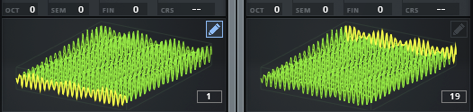
– Understand that when Serum Splits “at xxx Samples per Waveform”, Serum is Taking the Total Length of the Imported Waveform, Divides it at the “xxx Samples” and Creates as Many Frames as it Gets (e.g. a Waveform of Total 40204 Samples : by 2048 Samples = 19.36 Frames)

FFT Specific (Serum)
– FFT are a Spectral Import and Divide the Source into Small Snippets of Time and Analyze the Spectral Content (Kind a “Blurred Averaging of the Frequency Content”)
– Ideal for Drum-Loops, Speeches or other Sounds you Want to Preserve the Picture
– the Larger the Number, the Longer the Time Period for Each Slice of Source Material, i.e. Larger = Less Time Resolution but Higher Frequency Resolution
Synth Sound Basic to Wavetable Example (Serum)
– How to Sample a Waveform from a Synth and Prepare for Serum
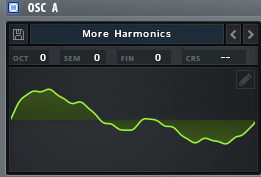
– here we Capture the “More Harmonics” Waveform from MPowersynth

1) Create a 1 Second Midi Clip and Insert a C3 Event
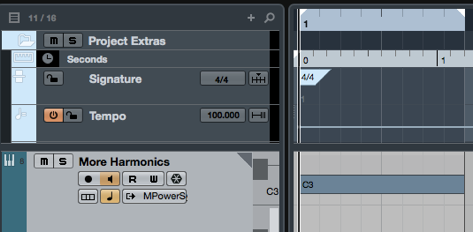
2) Render Midi to a Audiofile
3) Use “Normal -Dynamic Pitch Zero Snap” in Serum
4) Scroll through the WT Position and Find the “Sweetest Cycle”
5) “Remove DC Offset” and “Shift Horizontal to Zero Crossing”
Synth Sound + Morph Basic Example (Serum)
– How to Sample a Evolving Waveform from a Synth and Prepare for Table Morph in Serum
1) Sample & Render an Evolving Waveform at C0, then Cut Start and End to Just the Waveform you Need Before Entering Serum
2) Enter “C0” in the Formula Box and Drag Sample to Window

3) Use the “Normalize Each Gain (Separately)” Process
4) To Remove “Buzz” try the Smaller “X-Fade Edges 16 Samples” First
Synth Sound + Morph Advanced Example (Serum)
– Advanced Method of Sample a Evolving Waveform from a Synth and Prepare for Table Morph in Serum
– Since there is a Lot of Information on Evolving Sounds, the Basic Approach Above May Not be the Best Way as Detuning and Stereo Image Causing “Jitter” (and Buzz)
– in the Advanced Method we Create 13 Single Cycled Waveforms (Instead of using 1 Single Waveform)
– i.e. Choosing 13 Custom Regions within the Whole Sample and Render them Out Separately Before Entering Serum
1) Sample & Render an Evolving Waveform at C0
2) Cut the Waveform into 13 Single Cycled Waveforms (Regions)
– it is Probably the Best to Take the 13 Snapshots from “Equal” Distributed Spots Across the Whole Waveform
– or choose the Part that has the Desired Harmonic Information you are Looking For
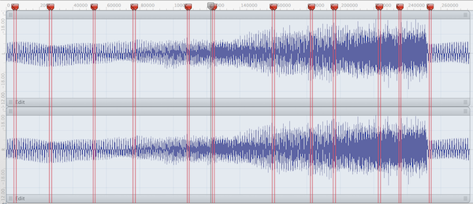
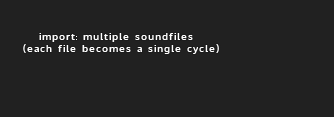
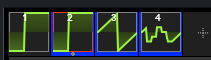
3) Drag All Regions into Serum, it Automatically Creates 13 Frames Containing the 13 Single Cycled

4) Use the “Normalize Each Gain (Separately)” Process
5) Go to “Morph Spectral” which will First Re-Synthesise Spectral Content and then Connect the Harmonics between Frames Seamlessly

No Proper Pitch Info available Example (Serum)
– this Technique is useful if you Do Not Know any Information about the Original Sources Pitch
– Notice that you have to Import the Source again if you Make Changes in the Formula Box, to actually Get the New Formula Executed on the Sample
1) Enter a “Guessed” Sampling Note Number in the Formula Box as a Starting Point
– here “C0” (Splits at 1348 Samples)

2) Move the WT Position See if the Waveform has Issues when “Shifting”, for “Right Shifts” Enter a Larger Number
– Viceversa if it “Shifts” to the Left, Enter a Smaller Number
– in this Case we See a Shift from to the Right
3) Increase to 1400 Samples and Import again

– the “Shift” Issue is Less and the Waveform Moves Smoother
4) Increase to 1500 Samples and Import again
– it Now Starts to Shift to the Left, so we have Gone Too Far
– Now you Know that the Best Value is Somewhere between 1400 and 1500
5) Once you have the Proper “Split”, Prepare for Best Morph Quality
a) Remove DC Offset
b) Normalize Each Gain Separately, i.e. Push Every Cycle Individually to its Maximum Volume
c) Increase Grid Size to Maximum (64)
d) Choose “Fade Edges Grid Size”
6) Finally choose “Spectral Morph” and you have a Proper Wavetable
Advanced Example (Best Replica Results for Serum)
– Preserve Maximum Quality when Import any Sound
– it is Best to use Low Frequency Notes with 2048 Samples
1) Enter “2048” in the Formula Parser
– it Replies that 2048 is at Note “F-1 at 22Hz -23 Cents”

– so we Know we Should Play a Low F with -23 Cents in the Source Synth
2) In a Simple Synth, Create a F-1 that Produces 22Hz Tone
– since Serum can Handle Up to 256 Frames, we can Render this 22Hz Tone for Up to 11.6 Seconds (which is about 8 Bars at 165BPM)
– but when Sound is More or Less Equal, use only the Portion you Need
3) Change Fine-Tune to -22 Cents to Match the F-1 at -23 Cents)
– i.e. Go For the 22Hz Mark with any Source you have
– Render the File
4) Finally Import the File with the Formula Parser Still at “2048 Samples” and Clean Up Results the Usual Way
Export
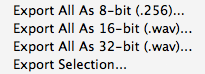
Export All As 8-Bit (.256)
– Export Entire Wavetable As a 8-Bit Wavetable Set
Export All As 16-Bit (.wav)
– Export Entire Wavetable As Single Wave File in 16-Bit
Export All As 32-Bit (.wav)
– Export Entire Wavetable As Single Wave File in 32-Bit
Export Selection
– Exports Selected Frames as Single Wave File
Leave a Reply